- They will first select their program, membership etc. and add all items to their cart
- Next they will select Checkout at which point they will be presented with all the waivers associated with their program/memberships
- They will first need to click View Waiver which will download the waiver
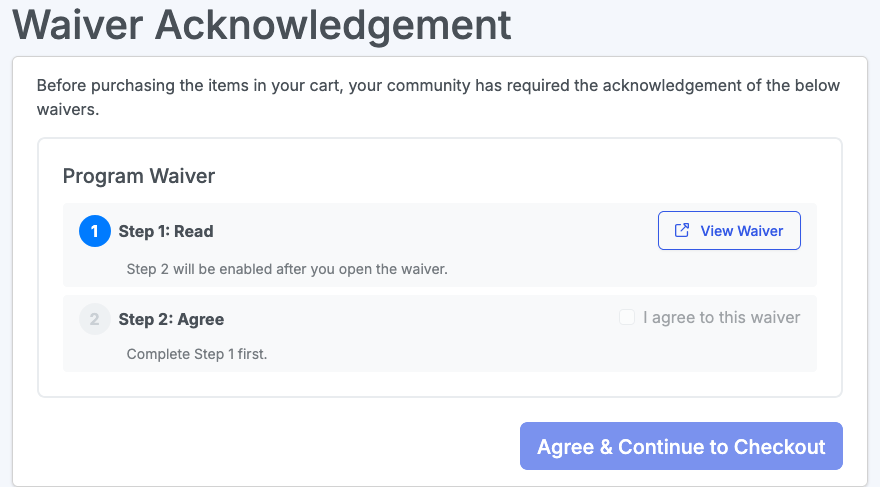
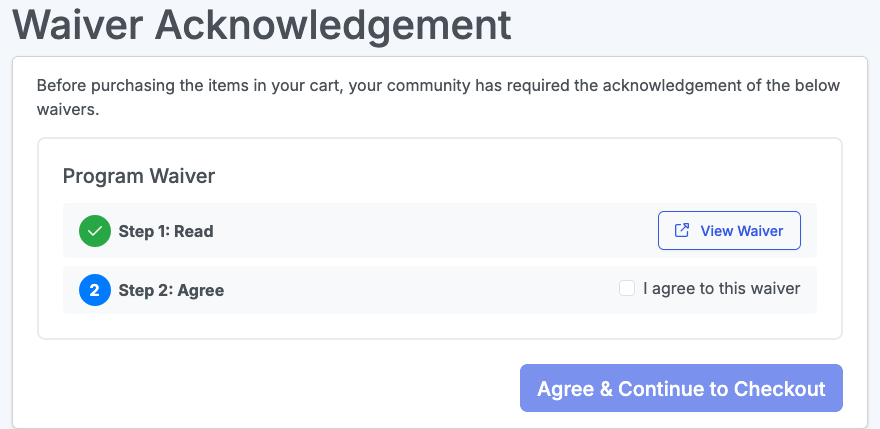
- Next, they will Agree to the waiver. They will not sign the dowloaded waiver, rather read it and digitally acknowledge it in Communal
- Then they will select Agree & Continue to Checkout where they can continue through the checkout flow
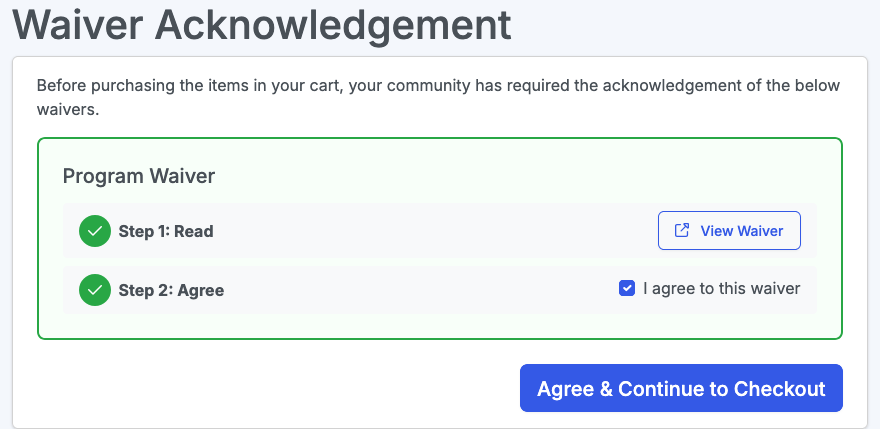
Waiver Acknowledgement - User View
See what your customer/member sees when agreeing to a waiver
Written by
Updated 1 month ago
