You can scan people in using two different methods, first on desktop using their membership number, the second is on mobile by scanning the QR code or barcode on their membership card
Reporting: Today's Activity + Historical Data
Desktop Scan In + Scan Out
- Navigate to your Communal Manager Dashboard
- On the left-hand menu, click Scan In/Out
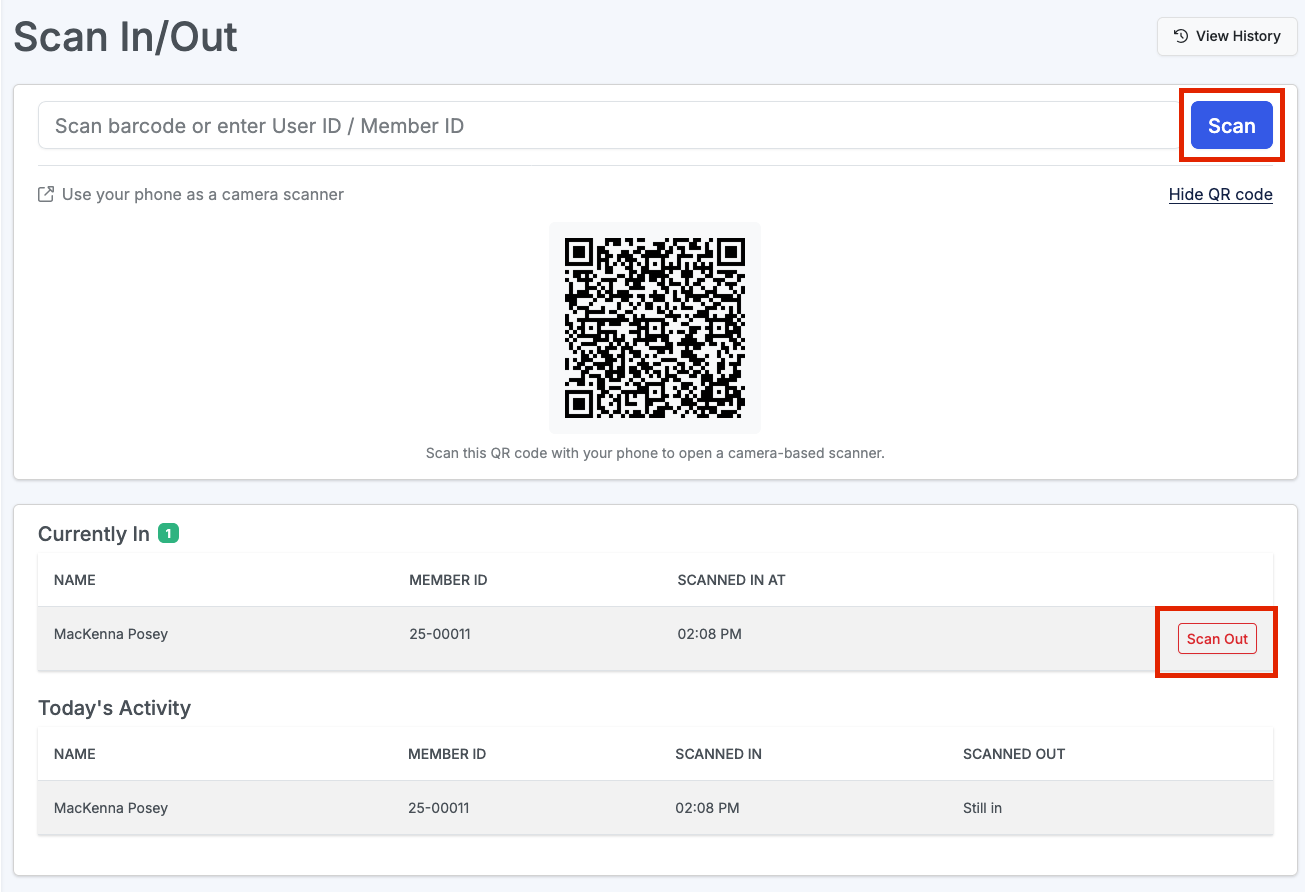
- Once on that page, enter the member's ID in the box and click Scan. This will scan the user in to your facility
- To scan out, locate their name in the Currently In list and click Scan Out
Mobile Scan In + Scan Out
- Navigate to your Communal Manager Dashboard
- On the left-hand menu, click Scan In/Out
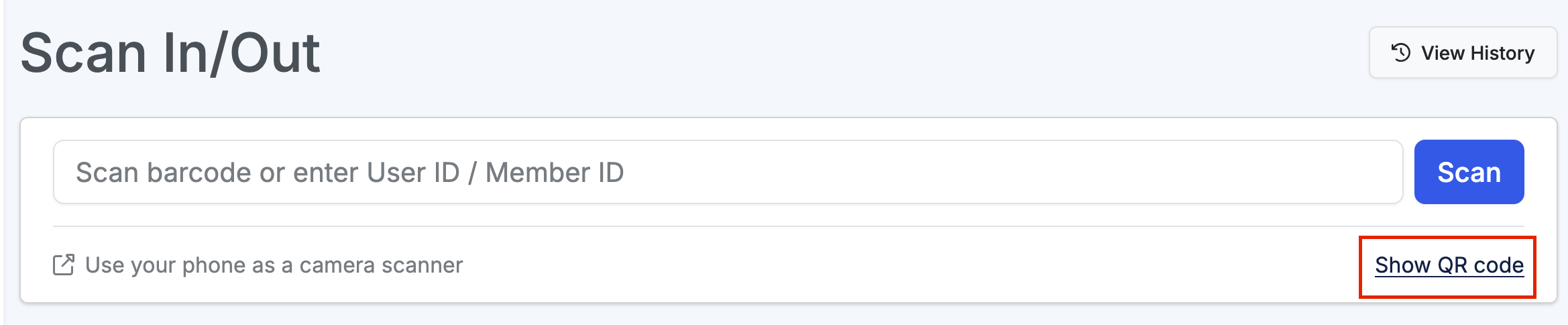
- Once on that page, click Show QR Code
- Next, scan the presented QR Code with your mobile device
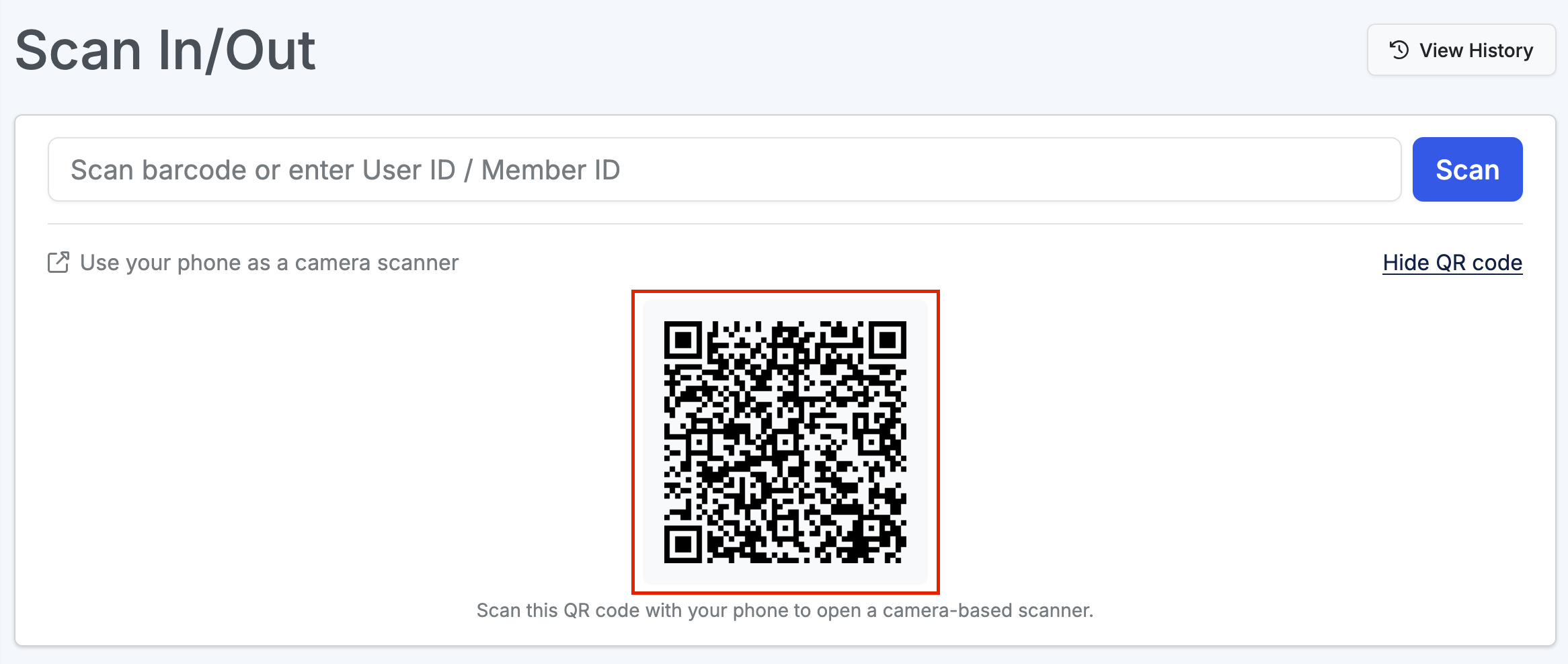
- This will then open up a scanner on your preferred mobile browser. You can then hover your device over the members QR code or barcode and click Scan
Reporting: Todays Activity + Historical Data
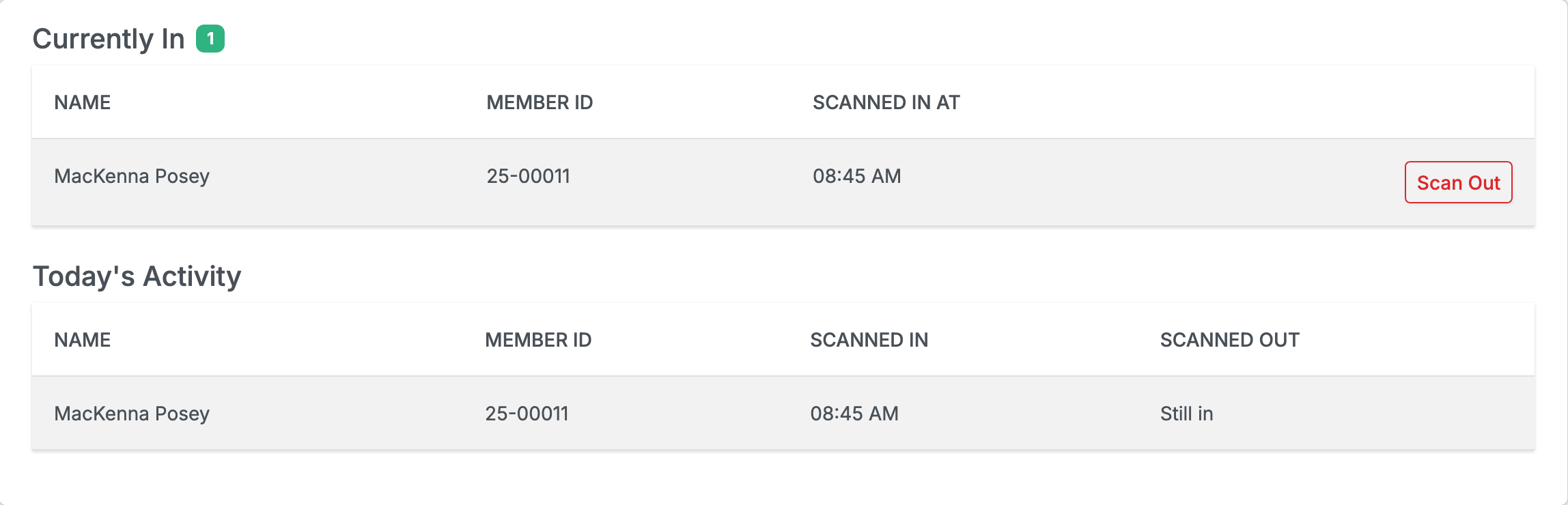
For the current day below the scan function you will be able to see who is scanned in at the moment and the days history.
To see historical data click the View History button and filter for your desired date range.
